
Access to many Rajasthan government online services is now simple because of the SSO ID system. SSO ID (Single Sign-On ID) allows citizens, businesses, Udyog and government employees to use multiple portals with a single login and the same login credentials.
With one SSO ID account, users can log in and use various services from different government portals in Rajasthan. This guide explains the online SSO ID registration step-by-step process, including how to create it and apply through the official portal.
How to Start the Online SSO ID Registration
The first step in online SSO ID registration is visiting the official portal.
- Visit the portal sso.rajasthan.gov.in. This is the official website where the registration form is available.
- On the homepage, users will see the Register Here button. Clicking this registration link will open the registration form.
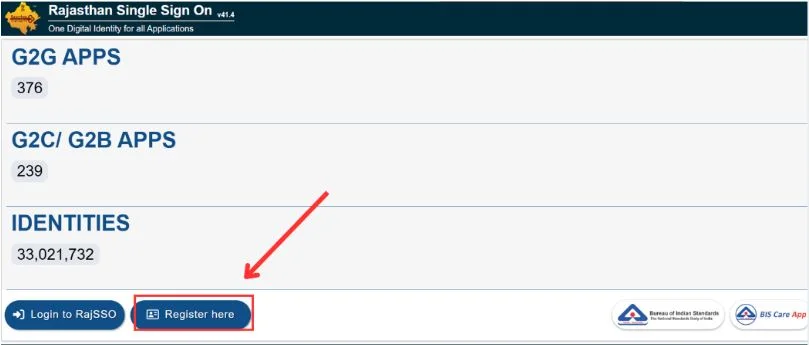
- The form shows three options for different users.
| Option | Who Should Select |
|---|---|
| Citizen option | Residents of Rajasthan |
| Udyog option | Business owners |
| Government Employee | Government staff |
- Select the correct option based on the requirement.
- Click the submit button.
- After completing these steps, the SSO ID account will be created successfully.
Online SSO ID Registration for Citizens
The Citizen category is the most used option in online registration. This option is mainly for citizens creating their SSO ID for the first time. When the form opens, choose the Citizen option.
Two methods appear for registration:
- Jan Aadhaar
- Google Account
Both methods help users create accounts quickly.
How to Register SSO ID Using Jan Aadhaar
Many citizens prefer registration using Jan Aadhaar because it verifies identity easily. Follow these steps.
- Enter Jan Aadhaar ID or enrollment number and click next.
- The family members list will appear. Select name selection.
- The system sends an OTP to the registered mobile number.
- Enter OTP and verify the number.
- Create username and password.
- Click submit
After verification, citizen SSO ID registration was completed successfully.
How to Register SSO ID Using a Google Account
This method works through the Google option.
Steps include:
- Select the Google option.
- A Google login pop-up will appear.
- Choose your Gmail ID and Sign in
- Click allow permission.
- Enter your mobile number.
- Create username and password
- Click register.
How to Register SSO ID for Udyog (Business)
The Udyog option is for business users. Earlier, the citizen and Udyog registrations were separate. But after a portal UI update, the SSO portal now has merged Citizen and Udyog registration. Because of this combined registration flow, business users must first create a citizen SSO ID using Jan Aadhaar or Google. Later, they can add business services to their profile.
Steps for Udyog Registration
- Open a browser on a mobile or a laptop.
- Visit the official website sso.rajasthan.gov.in.
- Click the registration link on the homepage.
- The form will open and select the Udyog option.
- Enter GSTIN or BRN.
- BRN means Business Registration Number.
- Fill in the business details and enter the OTP.
- Complete OTP verification.
- The account will convert into a Udyog profile.
- Create a username and a strong password.
- Click the submit button.
After this, Udyog SSO ID registration is completed.
SSO ID Registration for Government Employees
Another important category is government employee registration. Employees must choose the Government Employee option in the registration form. The system then shows the SIPF option.
Steps for Government Employee Registration
- Select the Government Employee option.
- Click the SIPF option.
- Enter SIPF number and SIPF password.
- Click next.
- The system will show the fetched employee details.
- An OTP will be sent. Enter OTP and verify.
- Create username and password.
- Click submit button.
What is SIPF number?
SIPF stands for State Insurance and Provident Fund. It is a unique number issued to government employees. This number is required for government employee registration.
Purpose of SIPF number:
- Employee identification.
- Maintain service records.
- Track employee benefits.
Helpdesk for SSO ID Registration
Users can contact support for registration problems and deactivated SSO ID issues.
| Support Type | Details |
|---|---|
| [email protected] | |
| Toll free numbers | 0141-5123717, 0141-5153222 |
Common Questions Related to SSO Registration
If SSO ID is deactivated, users should try logging in again or contact the helpdesk.
Yes. Users can change details after registration by logging into their SSO ID account and updating the profile.